Enabling Location Services
In order to use the Location Services, you may need to enable location services in your browser. Instructions for enabling Location Services on common platforms are included below:
Chrome on Windows 10
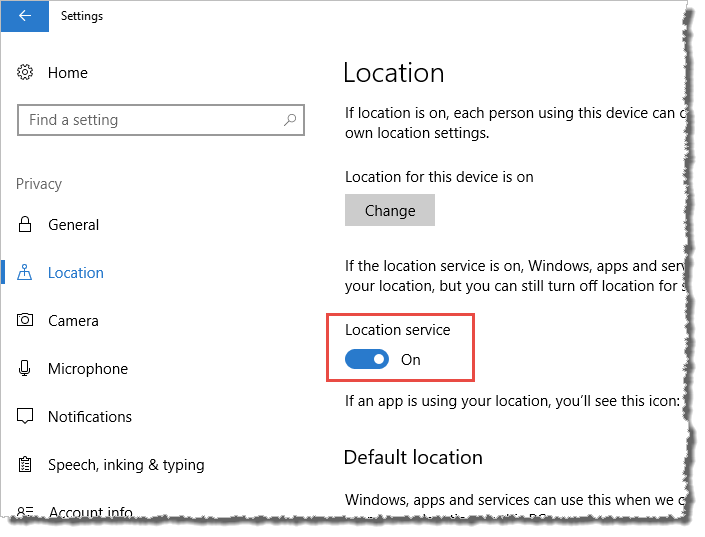
- Enable the Location service via Start > Settings > Privacy > Location:
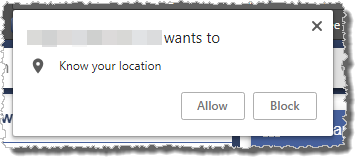
- Within Chrome, when you access Location Services, you will be prompted to allow the website to use your current location, select Allow at the following prompt:
Edge on Windows 10
- Enable the Location service via Start > Settings > Privacy > Location:
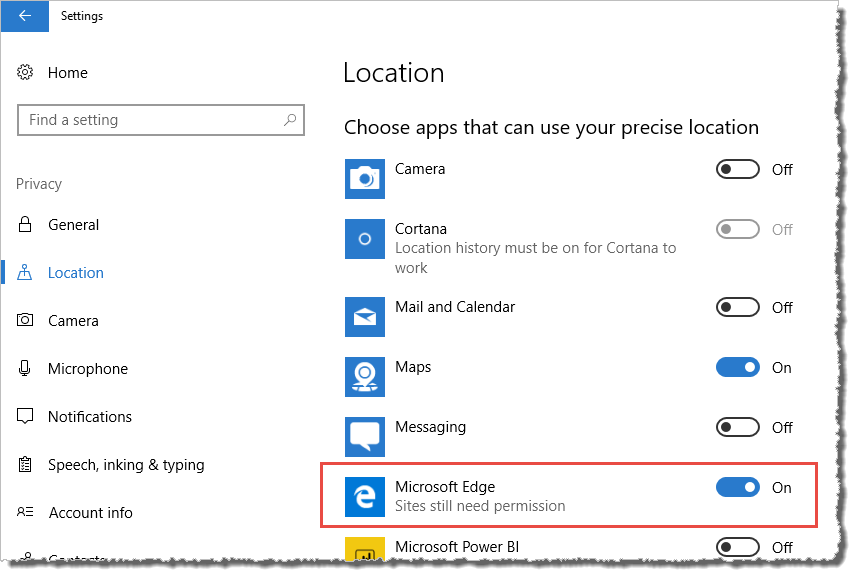
- Scroll down the page and under the heading Choose apps that can use your precise location ensure that Microsoft Edge is set to On:
- Within Edge, when you access Location Services, you will be prompted to allow the website to use your current location, select Yes at the following prompt:

Internet Explorer 11 on Windows 10
- Enable the Location service via Start > Settings > Privacy > Location:
- Within Internet Explorer 11, when you access Location Services button, you will be prompted to allow the website to use your current location, select Allow once, or Always allow from the Options for this site drop down:

Safari on iPad/iPhone
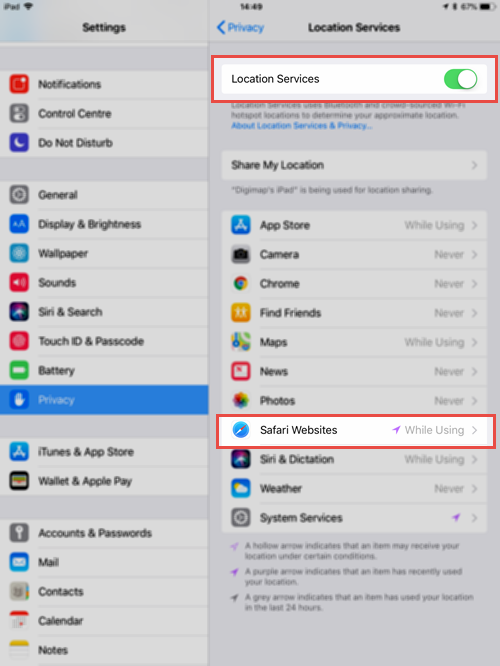
- Ensure that Location Services are turned on via Settings > Privacy > Location Services.
- Under Location Services ensure that Safari Websites are set to While Using:
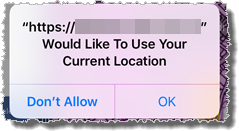
- Within Safari, when you access Location Services, you will be prompted to allow the website to use your current location, select Allow: